Building a Neovim workspace that feels complete
Neovim gives you a capable editor and the freedom to shape it around your work. That freedom also means assembling the rest yourself: file navigation, Git, language tools, sessions, and the terminal panes you use every day.
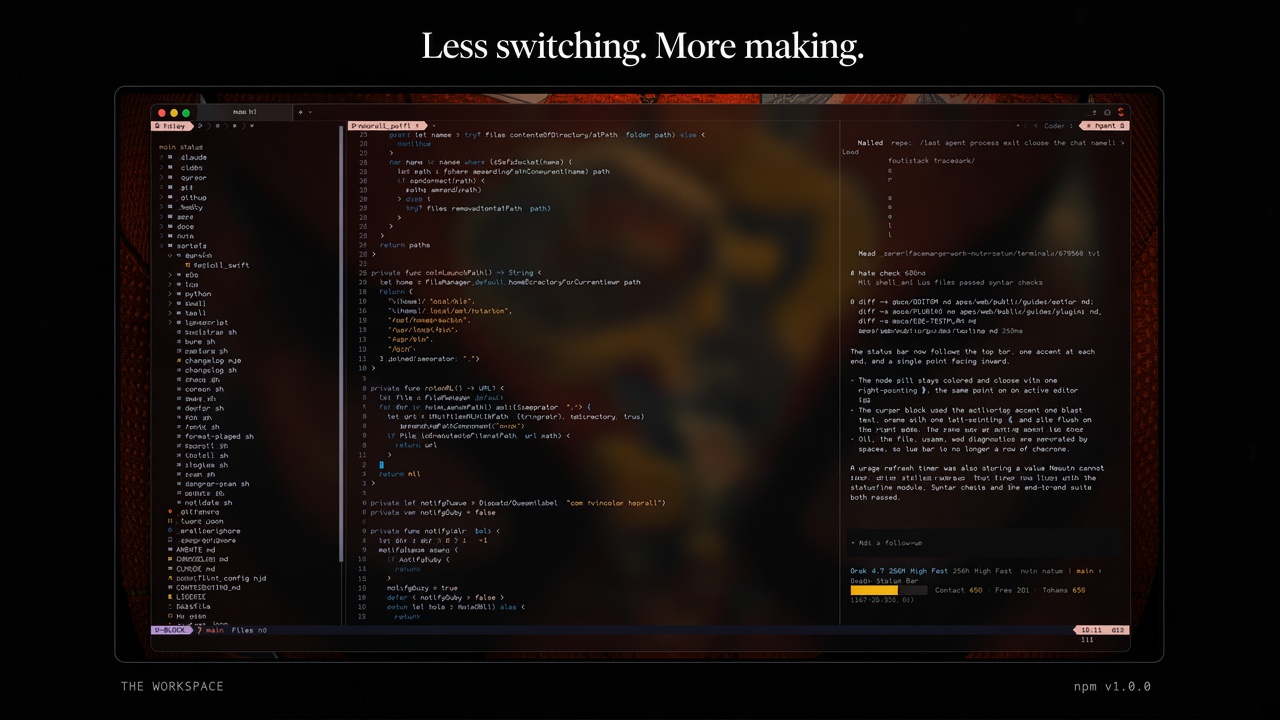
I wanted those pieces to feel like one workspace. That became nvim.setup, a Neovim configuration organized around three areas: files and tools on the left, the editor in the middle, and terminal sessions on the right. Its project site includes setup instructions and a demo.
It is a standalone configuration rather than a plugin to add to an existing setup. The installer backs up ~/.config/nvim before installing its files, so read the setup instructions before running it.
One window, three working areas
The layout keeps the file tree and tool panels on the left, editing space in the center, and terminal sessions on the right. The proportions are adjustable, but the default split gives the editor the most room.
┌──────────────┬────────────────────────────────┬─────────────────┐
│ Files│Git│Set│  main.ts │ utils.ts │ + │ ×    │ Codex 1 │ Agent 2│
│              ├────────────────────────────────┼─────────────────┤
│ src/         │                                │                 │
│   main.ts    │           Editor               │    Terminal     │
│   utils.ts   │                                │                 │
│              │     LSP · format · debug       │  CLI sessions   │
│     20%      │              52%               │      28%        │
└──────────────┴────────────────────────────────┴─────────────────┘
The terminal area can host coding tools such as Codex, Cursor Agent, Gemini, Claude Code, OpenCode, and Antigravity. These are the command line applications themselves, running with their own installed versions, accounts, and permissions. nvim.setup opens and manages their terminal sessions; it does not provide their models or log in on your behalf.
The rest of the workspace includes language server support, formatting, debugging, Git operations, session restore, and a catalog of dark themes. Sidebar tabs, editor tabs, and context menus provide familiar ways to move around without hiding the fact that the underlying application is still Neovim.
The details that took the most work
Bringing familiar editor interactions to Neovim
Neovim supplies the building blocks, but not every interaction people expect from a desktop IDE. Clickable editor tabs, a shared statusline, sidebar navigation, settings, and a command palette all needed to be assembled from Lua modules.
Keeping those features maintainable mattered as the configuration grew. The code is split into focused modules for areas such as sessions, the sidebar, Git, and themes, instead of concentrating everything in init.lua.
Running command line tools in terminal panes
Each coding tool has its own command and session-resume options. The workspace has to launch the right command, keep keyboard input in the terminal, and close a pane when its process exits. Small differences in terminal behavior can affect the experience too.
For example, some terminal applications set environment variables or emit escape sequences that change how a command line interface renders. I adjusted the terminal settings and theme colors to keep prompts readable and preserve spacing. These details are easy to miss when testing only inside one terminal emulator.
Restoring sessions safely
The session system restores editor tabs, unsaved buffers, and terminal conversations for each project. It identifies a project using a hash of its working directory. A clean Neovim launch can skip restoration, which helps prevent automated runs from replacing a user's saved session.
Swap files are disabled so they do not conflict with the session workflow. That makes reliable session saving and restoration especially important: the behavior needs to be predictable when Neovim closes and starts again.
Making Git actions predictable
The Git sidebar runs status checks asynchronously so it does not freeze the interface. Files and commits open in the main editor area, and the sidebar remains available while navigating.
Push exposed a subtle parsing issue. Git's branch status can include comparison and ahead/behind information, so the full status string is not necessarily a valid branch name. The push action now uses the local branch name and resolves the current HEAD when it runs.
Making fonts and themes work together
Icons and Powerline separators depend on the terminal font rendering their glyphs at the expected width. nvim.setup includes a font setup path for Monocraft with Nerd Font symbols, and its theme handling keeps important surfaces such as tabs and statuslines visible when the terminal background is transparent.
The theme catalog contains twenty dark themes. Switching themes also updates the terminal panes so their colors stay consistent with the editor.
Supporting horizontal scrolling
Long lines can be read with wrapping disabled and horizontal scrolling enabled. Some terminals turn trackpad movement into wheel events that Neovim can use directly; others do not.
On macOS, nvim.setup offers an optional helper for terminals that do not forward sideways trackpad movement as horizontal scroll events. The helper needs Accessibility permission to communicate with Neovim. It can also be disabled during installation.
Testing the workspace
The project includes end-to-end checks that run Neovim against a temporary Git repository and simulated command line tools. Those checks cover interactions such as opening panes, switching tabs, and restoring sessions without requiring live accounts for each tool.
That setup is useful for repeatable tests, but it cannot represent every terminal emulator, operating system, package manager, or real login flow. The E2E test plan documents those boundaries. I also keep the user guide and configuration behavior in sync as features change.
What to expect
nvim.setup aims to make a Neovim configuration feel like a cohesive daily workspace. It does not replace the command line tools it hosts, handle their authentication, or guarantee that every terminal supports every shortcut in the same way. Some features, including the macOS trackpad helper, have platform-specific setup requirements.
If you want to try it, start with the installation guide. The installer backs up the existing Neovim configuration before installing nvim.setup. For a preview that does not replace ~/.config/nvim, use the preview instructions on the project site.