Free Up Space on Your Mac (Without Breaking Anything!)

Here are some safe, effective ways to reclaim lots of space on your Mac without touching system files.
1. Use Apple’s Built-in Storage Management
- → About This Mac → Storage → Manage…
- Store in iCloud: Offload Desktop & Documents.
- Optimize Storage: Remove watched iTunes movies/TV shows and mail attachments.
- Empty Trash Automatically: Automatically delete items in Trash after 30 days.
- Reduce Clutter: Review large files and delete what you don’t need.
2. Tackle Large & Old Files
- Find big folders:
du -sh ~/* 2>/dev/null | sort -h - Spot huge files:
Delete or archive anything you don’t use (old disk images, ISO backups, installer packages).find ~ -type f -size +500M -exec ls -lh {} \;
3. Clean Up Caches & Logs
Warning: Only clear ~/Library caches, never
/Systemor/Library.
rm -rf ~/Library/Caches/*
rm -rf ~/Library/Logs/*
- Safari/Chrome caches: In each browser’s preferences → Advanced → “Clear Browsing Data.”
4. Remove Xcode & Developer Junk
If you’ve installed Xcode or command-line tools:
rm -rf ~/Library/Developer/CoreSimulator
rm -rf ~/Library/Developer/Xcode/DerivedData
xcodebuild -alltargets clean
sudo xcode-select --reset
- Uninstall old simulators via Xcode → Preferences → Platforms.
5. Pry Loose Hidden Local Snapshots (Time Machine)
Local snapshots can eat dozens of GB:
tmutil listlocalsnapshots /
# then remove each snapshot:
sudo tmutil deletelocalsnapshots 2025-04-10-123456
Or disable them entirely (not recommended if you rely on snapshots):
sudo tmutil disablelocal
6. Prune Package Manager Caches
- Homebrew:
brew cleanup brew autoremove - npm/Yarn:
npm cache clean --force
yarn cache clean
7. Docker & Virtual Machines
- Docker:
docker system prune --all --volumes - VMs (Parallels, VirtualBox):
Remove unused virtual disks or snapshots.
8. Archive or Offload
- Photos & Videos: Move old libraries to an external drive or to iCloud Photos.
- Mail Attachments: In Mail → Preferences → Accounts → “Download Attachments”—set to “Recent” or “None.”
- Podcasts & iOS Backups: Delete old iOS device backups in Finder (or iTunes) and Podcast episodes you’ve listened to.
9. Third-Party Disk Scanners (Optional)
Tools like DaisyDisk or GrandPerspective let you visually map disk usage—great for spotting random space hogs.
⚠️ Pro Tips & Precautions
- Back up first: Especially before mass-deleting.
- Avoid /System and /Library: Never delete Apple system files.
- Review twice: Make sure you won’t need a file before trashing it.
By combining Apple’s storage tools with targeted manual cleanups and cache prunes, you can free tens or even hundreds of gigabytes—while leaving your macOS installation untouched. Good luck!

Thanks for reading!
I hope you enjoyed reading this article. If you have any questions or feedback, don't hesitate to reach out to me on my social media bellow. Have a great day!




Best Practices for Frontend Development: Documentation, Patterns, and Tests
Hello, I'm Luiz, a Software Engineer from São Paulo, Brazil. In this article, I will share some best practices for frontend development that can help...

Understanding ErrorBoundary in React: A Comprehensive Guide
Hello, I'm Luiz, a Software Engineer from São Paulo, Brazil. In this article, we will explore the concept of Error Boundaries in React, how they work,...
Free Up Space on Your Mac (Without Breaking Anything!)
Learn how to safely reclaim tons of disk space on your Mac without touching system files. This guide covers everything from clearing hidden caches, lo...
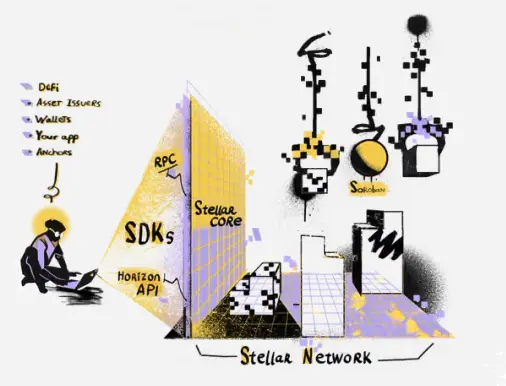
Soroban SDK & Rust - Writing Your First Smart Contract on the Stellar Blockchain
Hello! My name is Luiz, and in this article, I'll guide you through the basics of creating a smart contract on the Stellar blockchain using the Soroba...

Setting Up SSL Pinning into React Native
Hello, my name is Luiz and in this tutorial i'll teach you how to add a new layer of protection on the mobile side that will defend your app from Man...

Tips to Debug React Native under Android
Hello, I'm Luiz, a 26-year-old Software Engineer from São Paulo, Brazil. Today, I want to share some essential tips for debugging Android apps using R...

Learning in Public: Solana Smart Contracts Development
Hello this will be a quite different article where i share my notes while studying some topic/framework/language/technology in this section we will co...

Understanding Relay Fetch Policies and Suspense
Hello my name is Luiz and i'm a software engineer based in Brazil and today i'm going to explain how does react-relay works with Suspense from react,...
How to setup a CDN under Gitlab Organization
In this article i'll show you how to setup a static files CDN under Gitlab Organization using Gitlab Pages

How to Setup Gnome to Make it Look and Feel Better
In this article i'll talk about some tips to improove your gnome linux appearence to look like mine
Best Practices for Frontend Development: Documentation, Patterns, and Tests
Hello, I'm Luiz, a Software Engineer from São Paulo, Brazil. In this article, I will share some best practices for frontend development that can help...
Understanding ErrorBoundary in React: A Comprehensive Guide
Hello, I'm Luiz, a Software Engineer from São Paulo, Brazil. In this article, we will explore the concept of Error Boundaries in React, how they work,...
Free Up Space on Your Mac (Without Breaking Anything!)
Learn how to safely reclaim tons of disk space on your Mac without touching system files. This guide covers everything from clearing hidden caches, lo...
Soroban SDK & Rust - Writing Your First Smart Contract on the Stellar Blockchain
Hello! My name is Luiz, and in this article, I'll guide you through the basics of creating a smart contract on the Stellar blockchain using the Soroba...
Setting Up SSL Pinning into React Native
Hello, my name is Luiz and in this tutorial i'll teach you how to add a new layer of protection on the mobile side that will defend your app from Man...
Tips to Debug React Native under Android
Hello, I'm Luiz, a 26-year-old Software Engineer from São Paulo, Brazil. Today, I want to share some essential tips for debugging Android apps using R...
Learning in Public: Solana Smart Contracts Development
Hello this will be a quite different article where i share my notes while studying some topic/framework/language/technology in this section we will co...
Understanding Relay Fetch Policies and Suspense
Hello my name is Luiz and i'm a software engineer based in Brazil and today i'm going to explain how does react-relay works with Suspense from react,...
How to setup a CDN under Gitlab Organization
In this article i'll show you how to setup a static files CDN under Gitlab Organization using Gitlab Pages
How to Setup Gnome to Make it Look and Feel Better
In this article i'll talk about some tips to improove your gnome linux appearence to look like mine